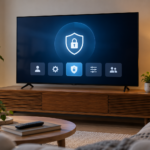
Smart TV privacy settings are spread across the television platform, individual applications and connected devices. Turning off one personalization option does not necessarily change all of them. A practical review identifies the accounts and optional features in use, explains the trade-offs and leaves the television easy to operate for the household.
Smart TV subtitles settings can exist in several places: the television’s accessibility menu, the streaming application, an external player and the individual program. Changing one layer may not affect the others. Start by identifying where the video is playing and whether the desired caption or subtitle track is actually available for that title.
Smart TV game mode is intended to make the display respond more promptly to a game source, often by reducing some image processing. It does not increase a console’s computing power or guarantee that every game runs at a higher frame rate. Understanding the separate roles of the game, console output and television helps you configure the system without chasing misleading numbers.
Choosing between a streaming stick and built-in TV apps is easier when you identify the limitation you want to fix. An external device can provide a different interface and app platform, but it cannot automatically repair poor Wi-Fi, a damaged screen or an unsupported audio chain. Compare the whole viewing setup rather than assuming that another device always improves it.
A smart TV remote not working can mean several different things: no buttons respond, only power works, voice search fails, or the television itself is frozen. Some remotes combine infrared and a wireless pairing connection, so partial operation can be a useful clue. Start by identifying exactly which controls work before resetting either device.
When smart TV apps keep crashing, the first useful distinction is whether one application fails or the whole interface becomes unstable. An app returning to the home screen, a frozen television and a video buffering inside an otherwise responsive app are different symptoms. Naming the failure accurately prevents unnecessary account resets and makes troubleshooting more focused.
Smart TV picture settings make more sense when you start with a familiar scene and a clear problem. An image that is too bright at night needs a different adjustment from one with artificial outlines or strange motion. Copying a complete set of numbers from another model can introduce new errors because controls and panel behavior differ.
HDMI ARC and eARC let a television send audio to a compatible soundbar or receiver through a designated HDMI connection. A normal HDMI picture connection does not automatically establish that return path. Reliable setup begins with the correct ports and compatible equipment, followed by a simple audio test before adding advanced formats.
A TV no HDMI signal message usually means the television is not receiving a usable signal from the selected input. It does not immediately prove that the display panel is broken. Work from the simplest connection outward, separating the source device, cable, intermediary equipment and television input before replacing anything.
Smart TV buffering is a symptom, not a diagnosis. The interruption can begin in the streaming service, the television app, the home wireless connection or the internet connection beyond the router. Testing one layer at a time prevents unnecessary resets and helps you decide whether the useful fix is local or outside your home.
A self-emptying robot vacuum can return to its station successfully and still begin the next run with a full bin. Charging, docking and debris transfer are separate functions. Diagnose the emptying process itself: whether it starts, whether air moves through the intended path and whether the robot’s bin is actually cleared afterward.
A robot vacuum can help control everyday pet hair, but its success depends on access, brush condition and the amount of material collected between runs. A useful pet-hair routine combines appropriate scheduling with regular checks. It should reduce manual work without relying on the robot to handle hazards or every deeply embedded strand.
When a robot mop leaves streaks, adding more water or detergent can make the result worse. Streaks can come from a dirty pad, unsuitable solution, residual floor cleaner or uneven contact. Start by checking what the floor and robot are designed to tolerate, then compare one small suitable area under controlled conditions.
A robot vacuum losing suction may leave dust behind even though its motor sounds normal. Before choosing the highest power setting, inspect the path that carries debris from the floor into the bin and through the filter. A full container, poorly seated part or restricted filter can prevent the machine from using its available power effectively.
A robot vacuum stuck at a doorway is not always facing a threshold that is simply too tall. The edge shape, approach angle, surface grip and attached mop can all affect the attempt. A controlled inspection helps distinguish a limit of the product from a correctable obstruction, without damaging the floor or defeating the robot’s sensors.
A robot vacuum shown as offline may still be able to clean from its physical controls. The app label can reflect a local wireless problem, an account issue or a service outage rather than a failed motor or battery. Identify which part of the connection is missing before resetting the robot and losing useful maps or schedules.
Preparing floors for a robot vacuum is less about making the home spotless and more about removing the objects that can interrupt or damage the cleaning process. A few repeatable checks can prevent tangled cables, displaced rugs and missed rooms. The right routine should take less effort than repeatedly rescuing the robot after a failed run.
Robot vacuum brush maintenance can restore consistent pickup when hair and thread interfere with the cleaning mechanism. The task is usually simple, but the brush, end caps and cover must be handled according to the model’s instructions. A brush that looks clean but is reinstalled incorrectly can create noise, drag or an error on the next run.
We use essential cookies to keep this website working. With your permission, we also use advertising cookies and similar technologies. You can accept all, reject optional cookies, or choose your preferences. You can change your choice at any time using Cookie settings.
Functional
Always active
The technical storage or access is strictly necessary for the legitimate purpose of enabling the use of a specific service explicitly requested by the subscriber or user, or for the sole purpose of carrying out the transmission of a communication over an electronic communications network.
Preferences
The technical storage or access is necessary for the legitimate purpose of storing preferences that are not requested by the subscriber or user.
Statistics
The technical storage or access that is used exclusively for statistical purposes.The technical storage or access that is used exclusively for anonymous statistical purposes. Without a subpoena, voluntary compliance on the part of your Internet Service Provider, or additional records from a third party, information stored or retrieved for this purpose alone cannot usually be used to identify you.
Marketing
The technical storage or access is required to create user profiles to send advertising, or to track the user on a website or across several websites for similar marketing purposes.